How do I enable multi-factor authentication (MFA)?
Multi-factor authentication adds an extra layer of security to your portal.
To enable MFA:
- Log in to your portal
- Go to your Profile settings
- Find "Multi-Factor Authentication" or "Two-Factor Authentication".
- Click Enable
- Scan the QR code with an authenticator app (Google Authenticator, Microsoft Authenticator, etc.)
- Enter the verification code to confirm setup.
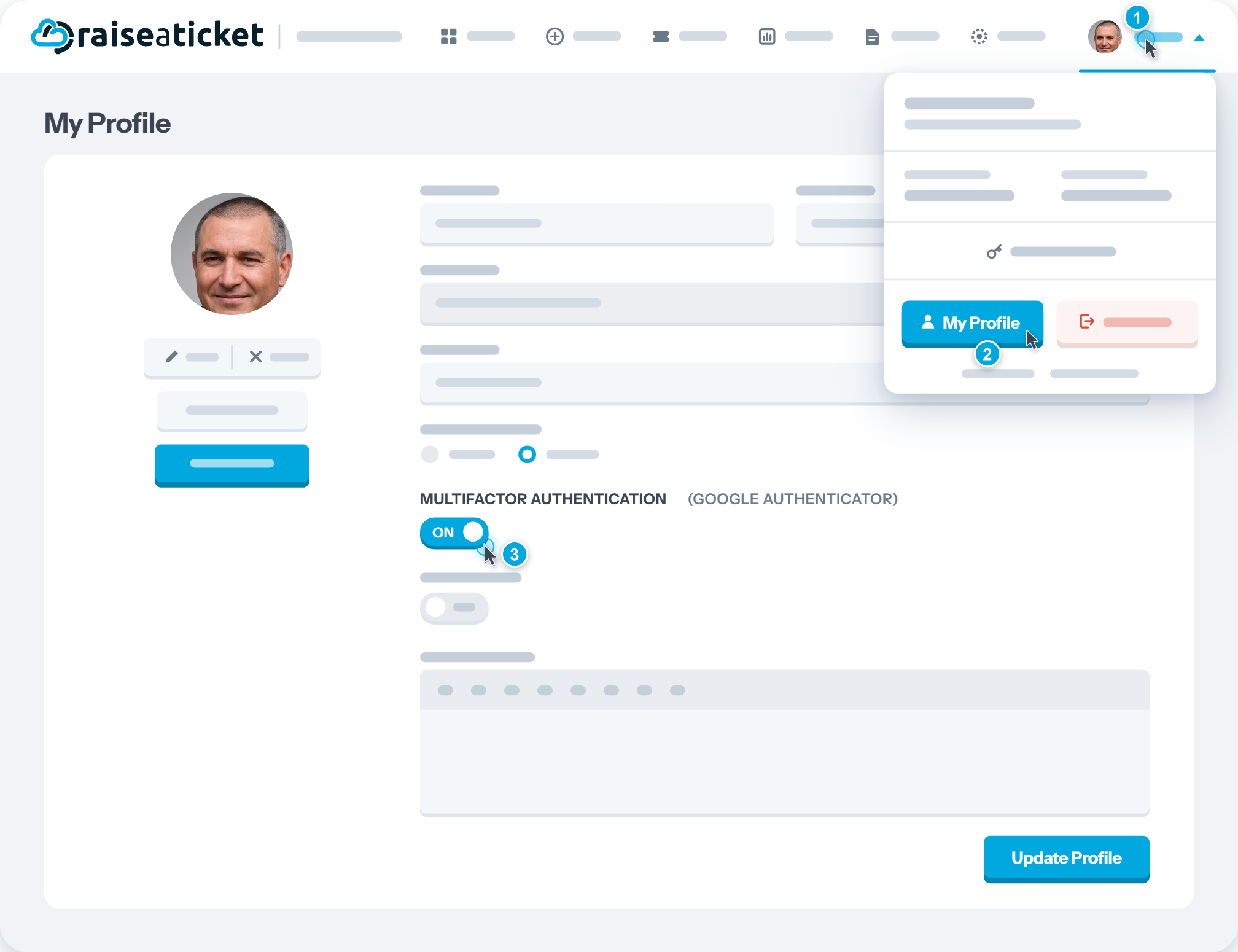
Once enabled:
- You will need your authenticator code each time you log in.
- If you lose access to your authenticator, contact your portal Admin.
For admins: If an agent loses access to their authenticator, you can reset their MFA from Settings > Agents > select agent > Reset MFA.
Last reviewed17 August 2026
Maintained byRaiseaticket Support
Applies toFree plan
Required roleAdministrator
